
Status Download in GB WhatsApp Pro v18.80
Save any contact's status photos and videos directly to your phone — no third-party app needed.
In context
Why people actually use Status Download
Status Download lets you save any contact's status to your phone — photos, videos, voice notes — with a single tap. Official WhatsApp requires the contact to send it to you separately, or you have to screen-record the status while it plays (and the recording is obviously visible to the uploader because they can see who viewed). GB WhatsApp Pro's Status Download bypasses both: tap a button while viewing the status, and the original-resolution file is saved to your Pictures/WhatsApp Status folder. The uploader sees a normal "viewed" event, with no indication you saved it. The use cases are everyday: parents saving photos a friend posted of their kids, journalists saving statuses for research, anyone saving a song or recipe video for later. Privacy considerations are real — using Status Download to save someone's status without telling them is socially adjacent to taking screenshots without asking.
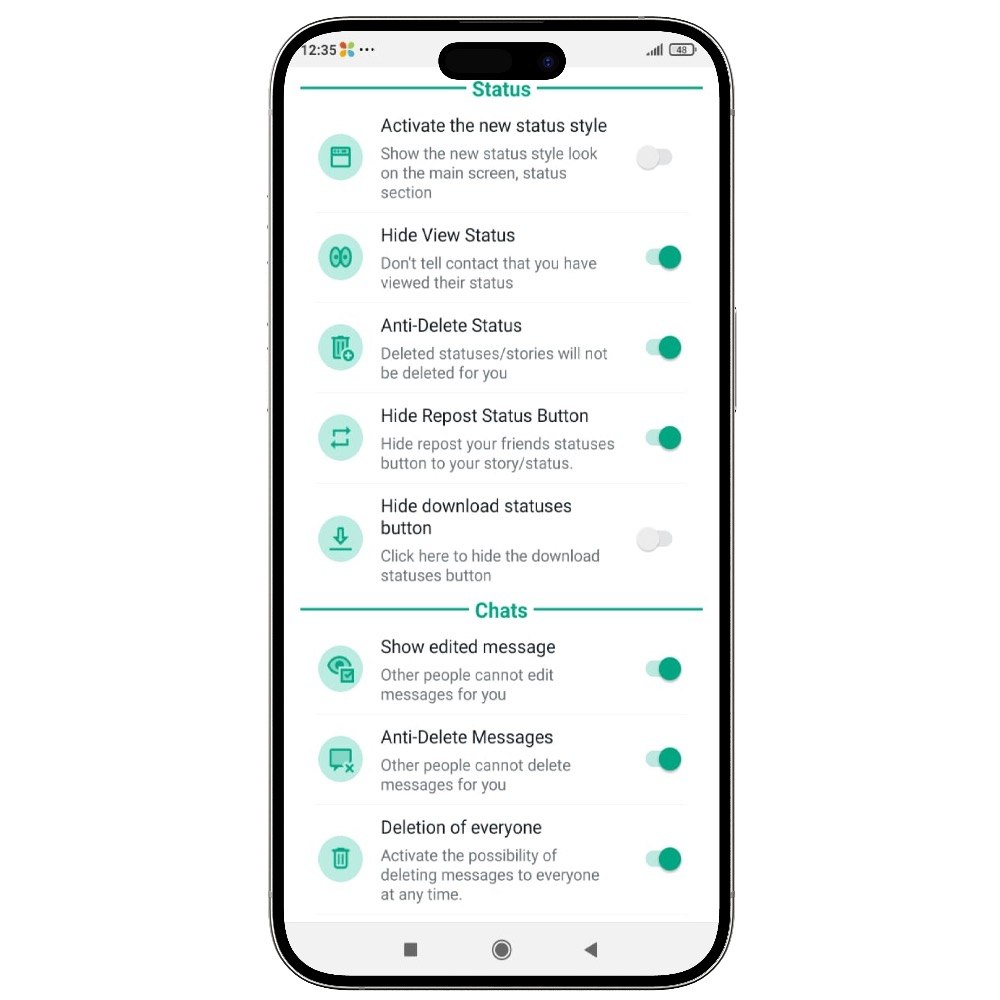
Deep Dive
What Status Download actually does
Tap the download icon on any status to save it to your device. Photos, videos and even text statuses can be saved in full original quality. The downloaded file appears in your gallery or downloads folder immediately.
Key benefits
- Save photos, videos and text statuses
- Original quality preserved
- No third-party status saver app required
How to enable
Enable Status Download in 4 steps
Total time: about 30 seconds. Requires GB WhatsApp Pro v18.80 to be installed first. If you have not installed yet, download from the homepage.
-
Open Status
Bottom navigation → "Status" tab. Tap any contact's status to play it.
-
Find the Save button
A small download icon appears at the bottom of the status while it is playing. v18.80 moved it to the right side of the action bar.
-
Tap once
The status saves to /Pictures/WhatsApp Status/ (or /Internal Storage/GBWhatsApp/Media/.Statuses/ depending on build). File keeps its original resolution.
-
Bulk-save mode
For saving multiple statuses at once: Status tab → three-dot menu → "Save All" → all currently visible statuses are saved in one action.
FAQ
Questions about Status Download
Does the contact know I saved their status?
Where do saved statuses go on my phone?
Can I save voice statuses too?
Will I still be able to view the status after the 24-hour window?
Common mistakes
What people get wrong with Status Download
The most-asked support questions about Status Download come from these three patterns. Worth scanning before you enable.
- 1
Saving statuses for later then forgetting where Android put them. The first thing to do after enabling Status Download is open Files → Internal Storage and confirm where the saves land.
- 2
Treating saved statuses as if they were shared with you. Saving and re-sharing someone's status is socially clumsy at best and a real privacy violation at worst.
More from Media
Related media features
Useful next
More on Status Download and related topics
Hand-picked guides on how this feature interacts with installation, anti-ban routing, and the rest of GB WhatsApp Pro.
- How-to
Install GB WhatsApp Pro on Android
Safe sideload sequence — enable Unknown Sources, verify SHA-256 hash, first-launch checks.
Read - How-to
Update without losing chats
Safe in-place update procedure from any older build. Backup, install over, verify the upgrade kept your data.
Read - Blog
Anti-Ban Guide 2026
What "anti-ban" actually means at the routing-layer level, which user behaviours actually raise ban risk, and what to do if a ban hits.
Read
Get Status Download (and 24 more features)
Install GB WhatsApp Pro v18.80 from gbwhattspro.com — every feature unlocked from first launch.